> ## Documentation Index
> Fetch the complete documentation index at: https://docs.aiosmedical.com/llms.txt
> Use this file to discover all available pages before exploring further.
# Auth
> Configure the appearance and branding of the authentication pages
 ## Authentication Page Customization
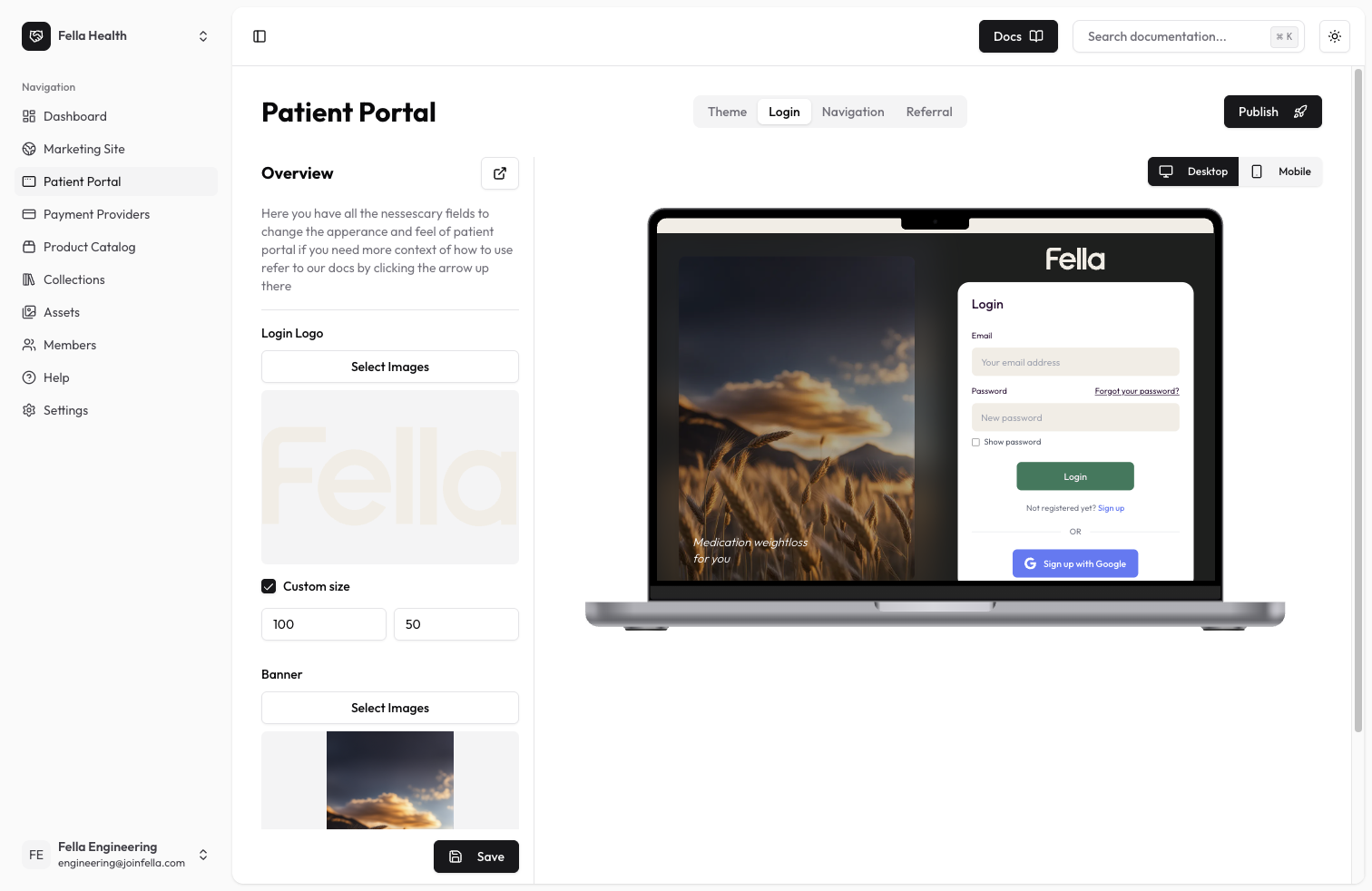
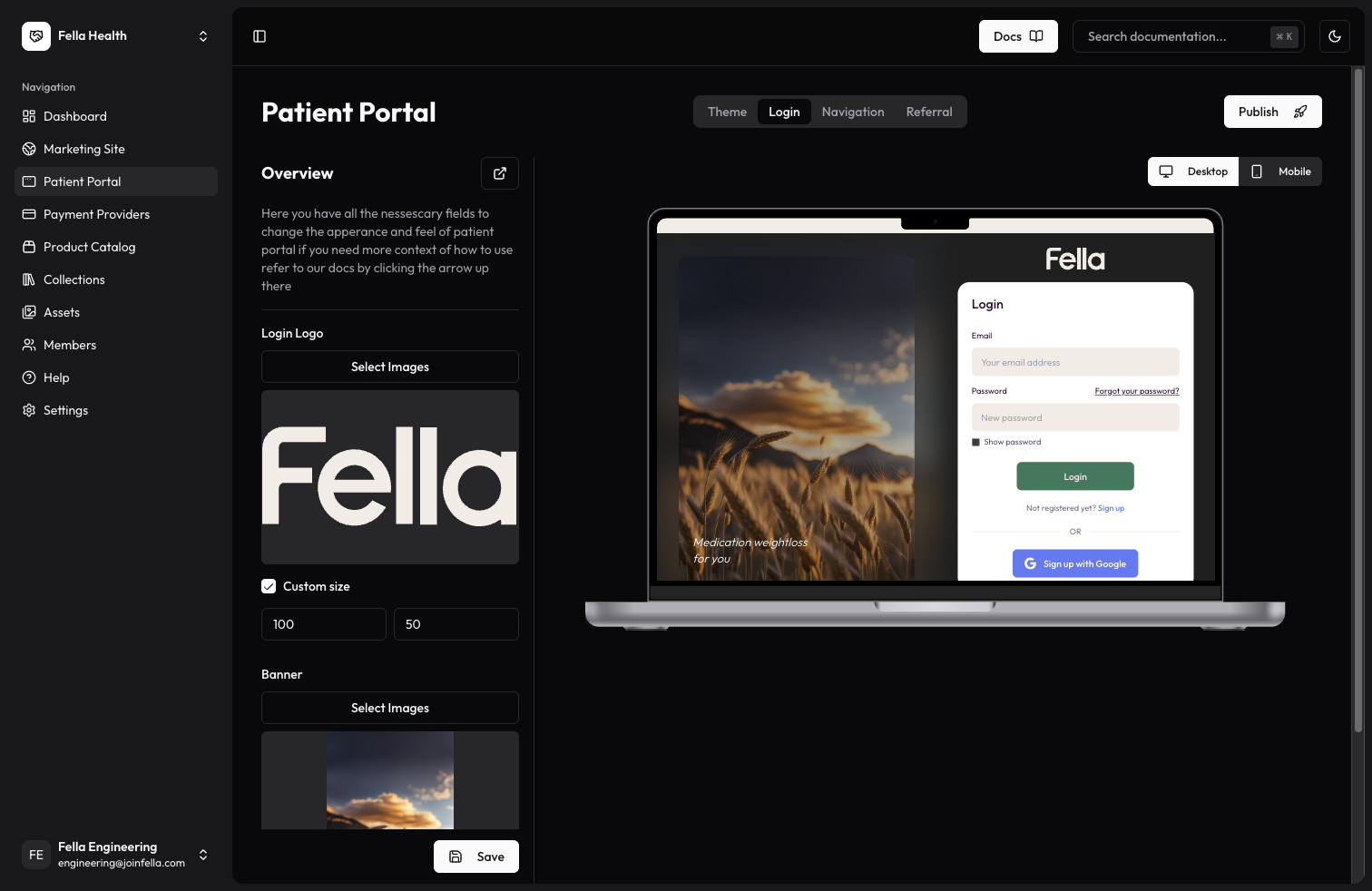
The authentication pages are where your patients will sign in or sign up to access their portal. You can customize the appearance of these pages to match your clinic's branding.
## Available Settings
### Login Logo
Upload a logo or select one from the assets that you previously uploaded to the assets section. This will be displayed at the top of the login/signup form. You can customize:
* Width: Set the width of your login logo
* Height: Set the height of your login logo
### Banner Image
Upload an image or select one from the assets that you previously uploaded to the assets section. This will be displayed on the left side of the authentication pages as an image banner and also as a blurred background image. You can customize:
* Width: Set the width of your banner image
* Height: Set the height of your banner image
## Best Practices
* Use high-quality images that are clear and professional
* Ensure images reflect your clinic's branding
* Keep logo size appropriate for the login form
* Use banner images that complement your branding
* Keep image file sizes reasonable for fast loading
* Maintain aspect ratios when adjusting image dimensions
Need help customizing your authentication pages? Contact our support team, and we'll be happy to assist you.
## Authentication Page Customization
The authentication pages are where your patients will sign in or sign up to access their portal. You can customize the appearance of these pages to match your clinic's branding.
## Available Settings
### Login Logo
Upload a logo or select one from the assets that you previously uploaded to the assets section. This will be displayed at the top of the login/signup form. You can customize:
* Width: Set the width of your login logo
* Height: Set the height of your login logo
### Banner Image
Upload an image or select one from the assets that you previously uploaded to the assets section. This will be displayed on the left side of the authentication pages as an image banner and also as a blurred background image. You can customize:
* Width: Set the width of your banner image
* Height: Set the height of your banner image
## Best Practices
* Use high-quality images that are clear and professional
* Ensure images reflect your clinic's branding
* Keep logo size appropriate for the login form
* Use banner images that complement your branding
* Keep image file sizes reasonable for fast loading
* Maintain aspect ratios when adjusting image dimensions
Need help customizing your authentication pages? Contact our support team, and we'll be happy to assist you.