> ## Documentation Index
> Fetch the complete documentation index at: https://docs.aiosmedical.com/llms.txt
> Use this file to discover all available pages before exploring further.
# Navigation
> Preview your branding in the navigation bar and customize the logo
 ## Navigation Overview
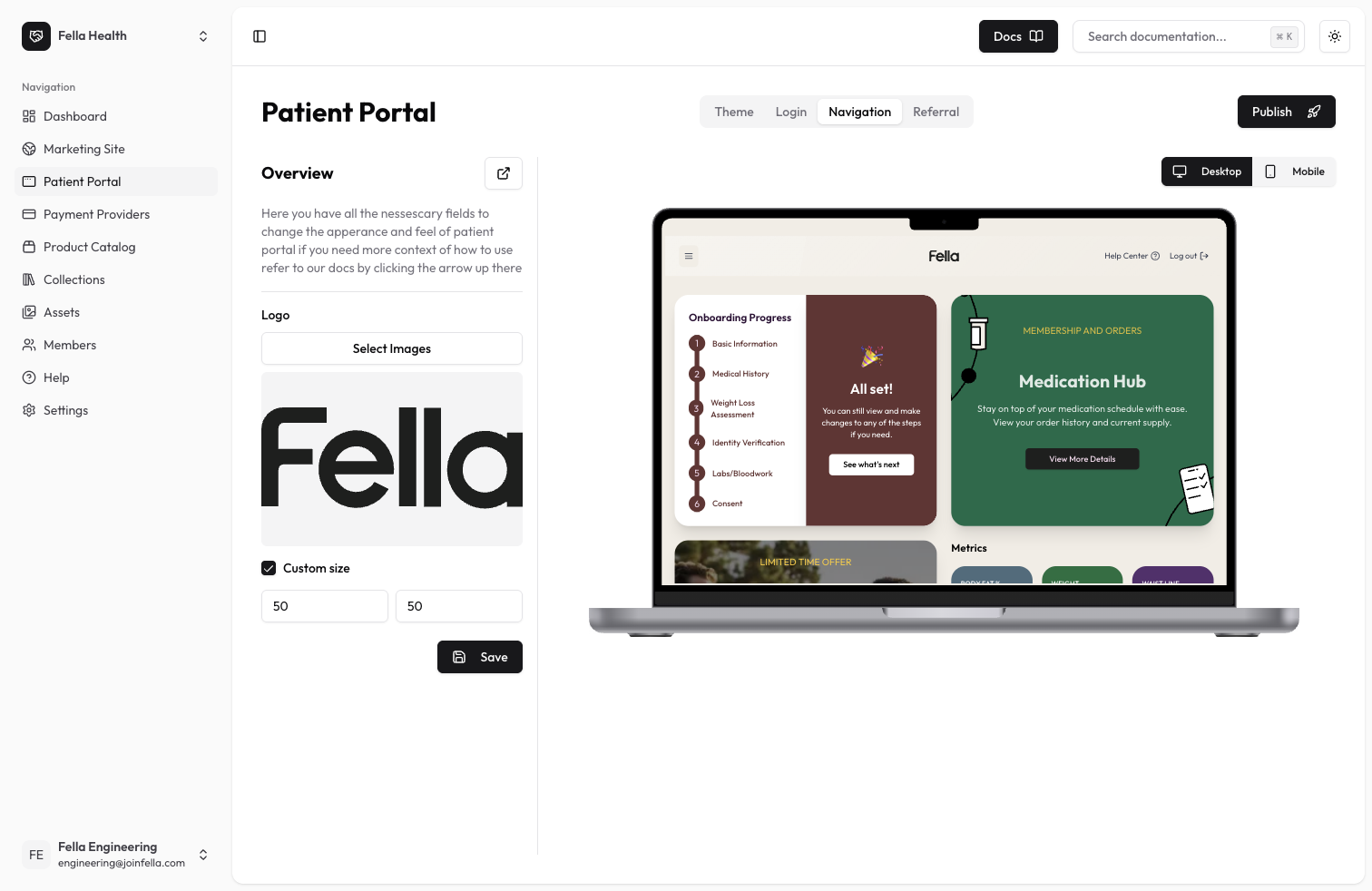
The navigation bar is where your clinic's branding comes to life. This section allows you to preview how your theme customizations appear in the navigation bar and lets you customize the logo that appears in it.
## Available Settings
### Logo Configuration
* Logo: Upload or select a logo from your assets to display in the navigation bar
* Logo Size: Adjust the size of your logo to fit perfectly in the navigation
### Theme Preview
The navigation bar automatically inherits and displays:
* Your primary brand colors
* Font styles
* Border radiuses
* Other visual elements configured in the Theme section
## Best Practices
* Use a logo with transparent background
* Ensure your logo is clearly visible against your chosen theme colors
* Test your logo at different screen sizes
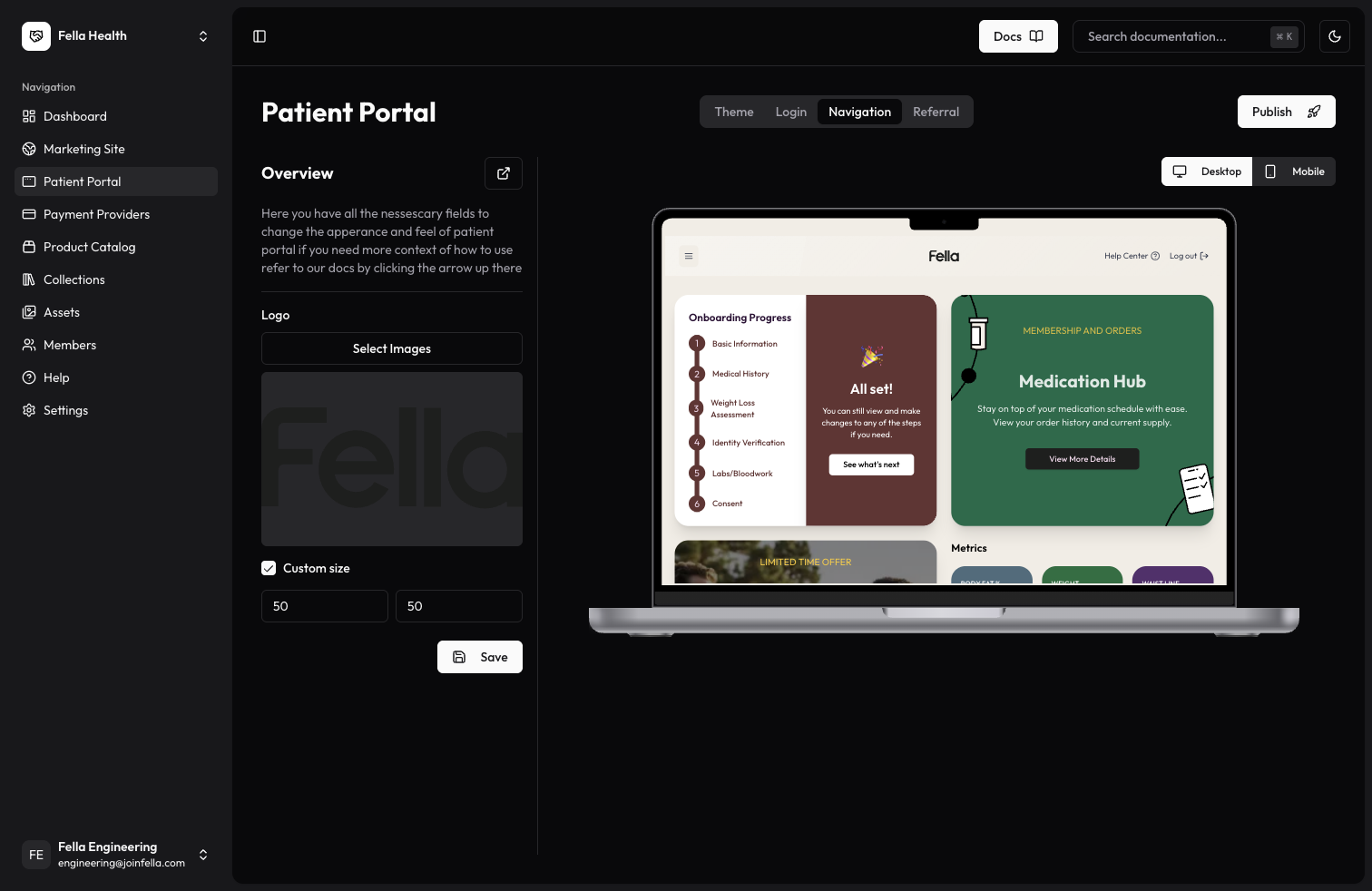
* Preview both light and dark modes to ensure visibility
Need help with your navigation customization? Contact our support team and we'll be happy to assist you.
## Navigation Overview
The navigation bar is where your clinic's branding comes to life. This section allows you to preview how your theme customizations appear in the navigation bar and lets you customize the logo that appears in it.
## Available Settings
### Logo Configuration
* Logo: Upload or select a logo from your assets to display in the navigation bar
* Logo Size: Adjust the size of your logo to fit perfectly in the navigation
### Theme Preview
The navigation bar automatically inherits and displays:
* Your primary brand colors
* Font styles
* Border radiuses
* Other visual elements configured in the Theme section
## Best Practices
* Use a logo with transparent background
* Ensure your logo is clearly visible against your chosen theme colors
* Test your logo at different screen sizes
* Preview both light and dark modes to ensure visibility
Need help with your navigation customization? Contact our support team and we'll be happy to assist you.