> ## Documentation Index
> Fetch the complete documentation index at: https://docs.aiosmedical.com/llms.txt
> Use this file to discover all available pages before exploring further.
# Publish
> Publish your customized patient portal changes to make them live
 ## Publish Overview
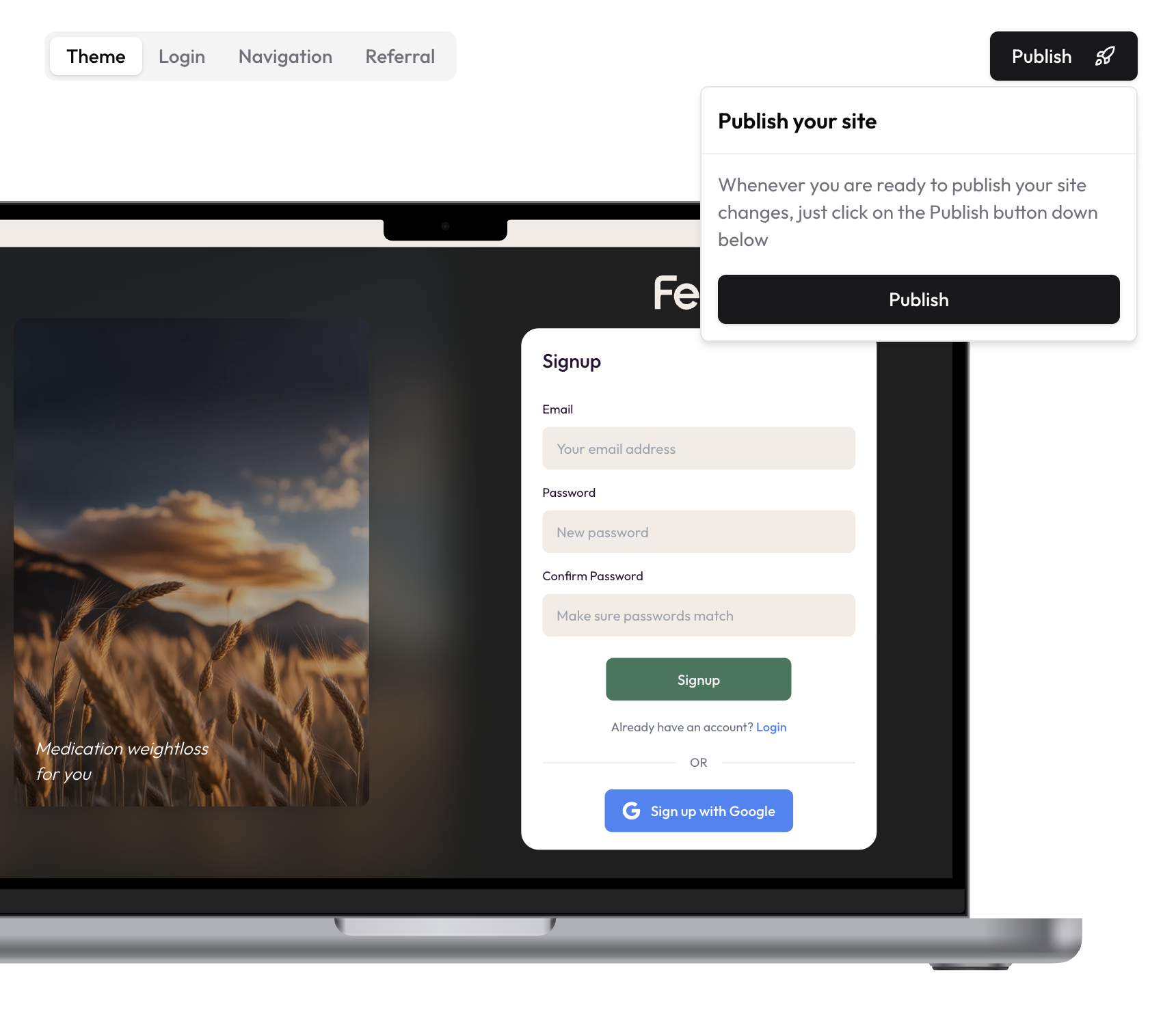
The publish section allows you to review and publish all the customizations you've made to your patient portal. This includes changes to themes, navigation, authentication pages, referral settings, and other configurations. When you're satisfied with your changes, you can make them live with a single click.
## What Gets Published
When you publish your changes, the following customizations will go live:
* Theme settings (colors, fonts, visual elements)
* Navigation bar and logo configurations
* Authentication page appearance and branding
* Referral program settings and images
* Communication preferences
## Publishing Process
1. Review Changes: Carefully review all modifications before publishing
2. Preview: Use the preview option to see how changes will look live
3. Publish: Click the publish button to make your changes live
4. Confirmation: Receive confirmation once changes are successfully published
## Best Practices
* Preview all changes before publishing
* Publish during low-traffic periods
* Back up your previous settings
* Test the portal after publishing
* Document major changes for future reference
Need help with publishing your changes? Contact our support team and we'll be happy to assist you.
## Publish Overview
The publish section allows you to review and publish all the customizations you've made to your patient portal. This includes changes to themes, navigation, authentication pages, referral settings, and other configurations. When you're satisfied with your changes, you can make them live with a single click.
## What Gets Published
When you publish your changes, the following customizations will go live:
* Theme settings (colors, fonts, visual elements)
* Navigation bar and logo configurations
* Authentication page appearance and branding
* Referral program settings and images
* Communication preferences
## Publishing Process
1. Review Changes: Carefully review all modifications before publishing
2. Preview: Use the preview option to see how changes will look live
3. Publish: Click the publish button to make your changes live
4. Confirmation: Receive confirmation once changes are successfully published
## Best Practices
* Preview all changes before publishing
* Publish during low-traffic periods
* Back up your previous settings
* Test the portal after publishing
* Document major changes for future reference
Need help with publishing your changes? Contact our support team and we'll be happy to assist you.