

Prerequisites
There are couple of things you need to have before you can setup Stripe for your marketing site.Setup
Stripe is a popular payment provider that allows you to process payments and subscriptions securely. Here’s how to set up Stripe:Step 1: Create a new Stripe Restricted Key
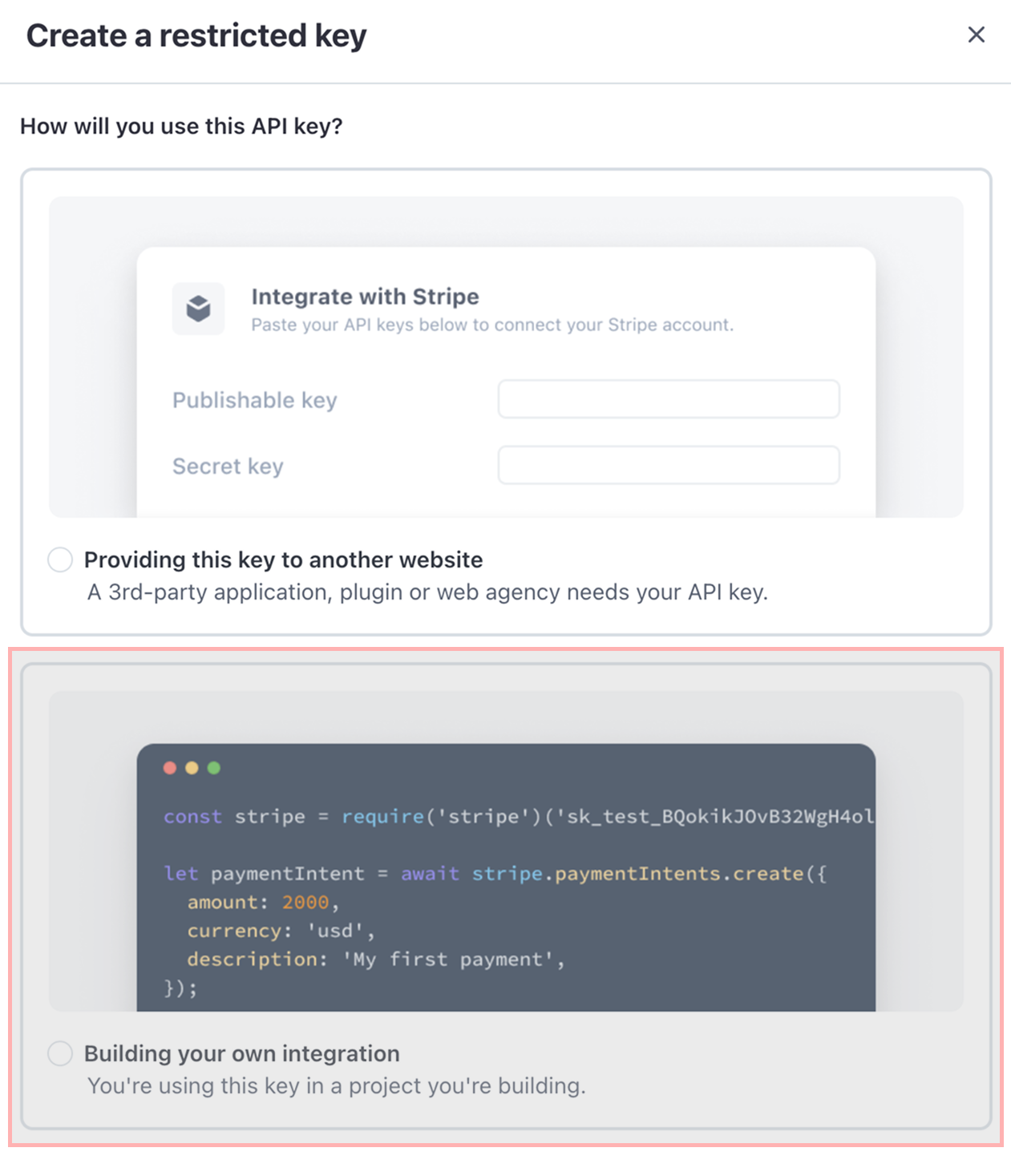
Navigate to your Stripe Dashboard Stripe API Keys and press Create restricted key button.You will be asked: How will you use this API Key ?
Select Bulding your own integration.

We need the Stripe Restricted Key because it allows our system to securely
communicate with Stripe on your behalf. This key is essential for performing
backend operations such as retrieving products and mapping them with
ClinicalOS products.\ Without it, we wouldn’t be able to integrate your Stripe
account with ClinicOS or access any of the necessary data to support our
functionalities
Step 2: Select Resource Types with Permissions
The next step is to do the following:- Add a key name (not very important example: ClinicOS + Your Clinic Name key)
- Select the correct Permissions for Resource Types (as shown in the table below)
On production mode Restricted Keys can be shown only once. So after creating the key please make sure to copy and save it somewhere.
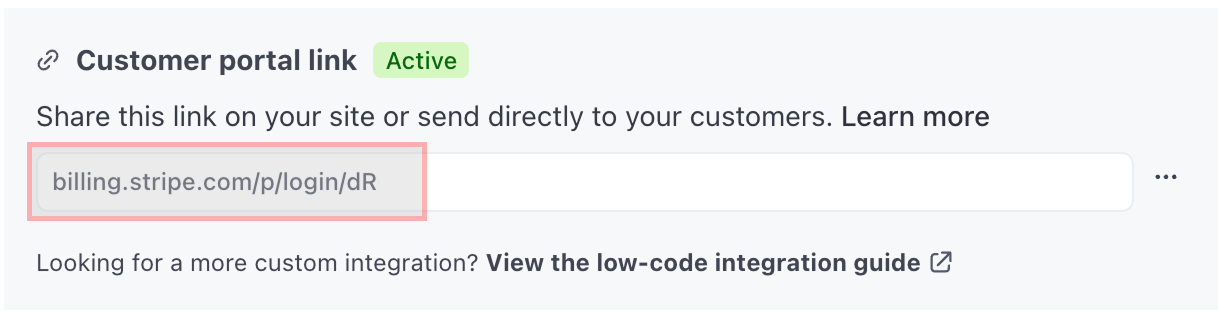
Step 3: Generate a Customer Billing Portal URL
Navigate to your Stripe Billing SettingsThis step is important because it allows you to create a secure, ready-to-use
link for your customers to manage their billing details. By enabling the
Customer Billing Portal, your users can independently update payment
methods, view past invoices, manage subscriptions, and more reducing the need
for manual support and improving the overall customer experience.
Step 4: Setup/Get your billing account name from Stripe
Navigate to your Stripe Business Settings Under your Public Details Section copy your Public Descriptor value as shown in the image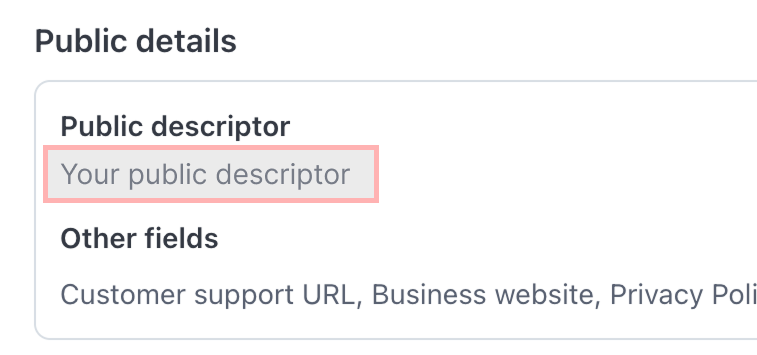
Step 5: Navigate to the Payment Providers page
Navigate to the Payment Providers page and click on the “Add Provider” button. Select “Stripe” from the list of providers, fill in the required fields and click on the “Save” button.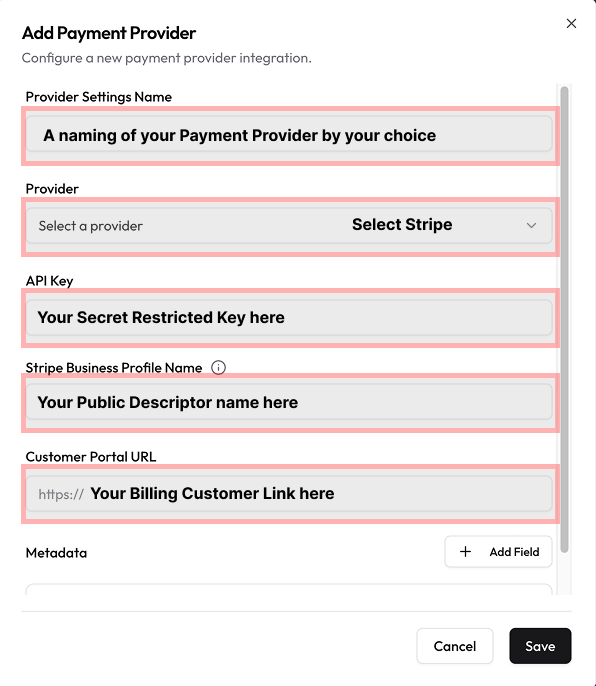
Explanation of Payment Provider Fields
Step 6: Start Using Stripe Configuration
If everything is correct after saving, a new Payment Provider will appear in the list, indicating that the configuration was completed successfully.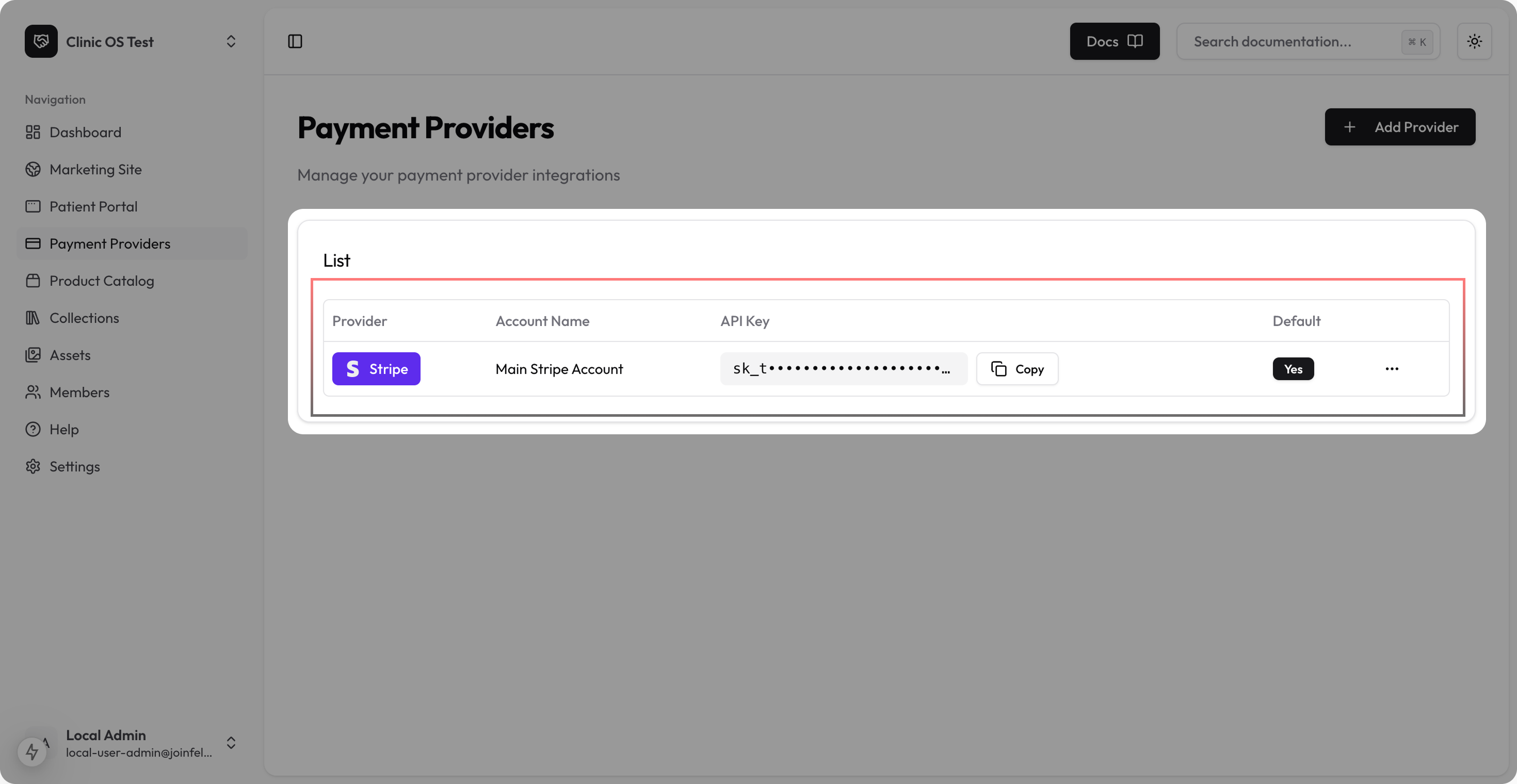
Next Steps
Now that you’ve set up Stripe, you might want to:- Configure your products in ClinicOS